Detection Notifications
Anzenna's notification system alerts you when security detections have new events. Notifications are event-centric — they tell you how many new events have occurred since the last notification, not the total count.
The system supports two delivery channels and two levels of configuration:
Channels — Email (individual or digest) and Webhooks (Tines, N8N, Slack, Microsoft Teams)
Configuration levels — Global defaults that apply to all detections, with optional per-detection overrides
Setting Up Global Notifications
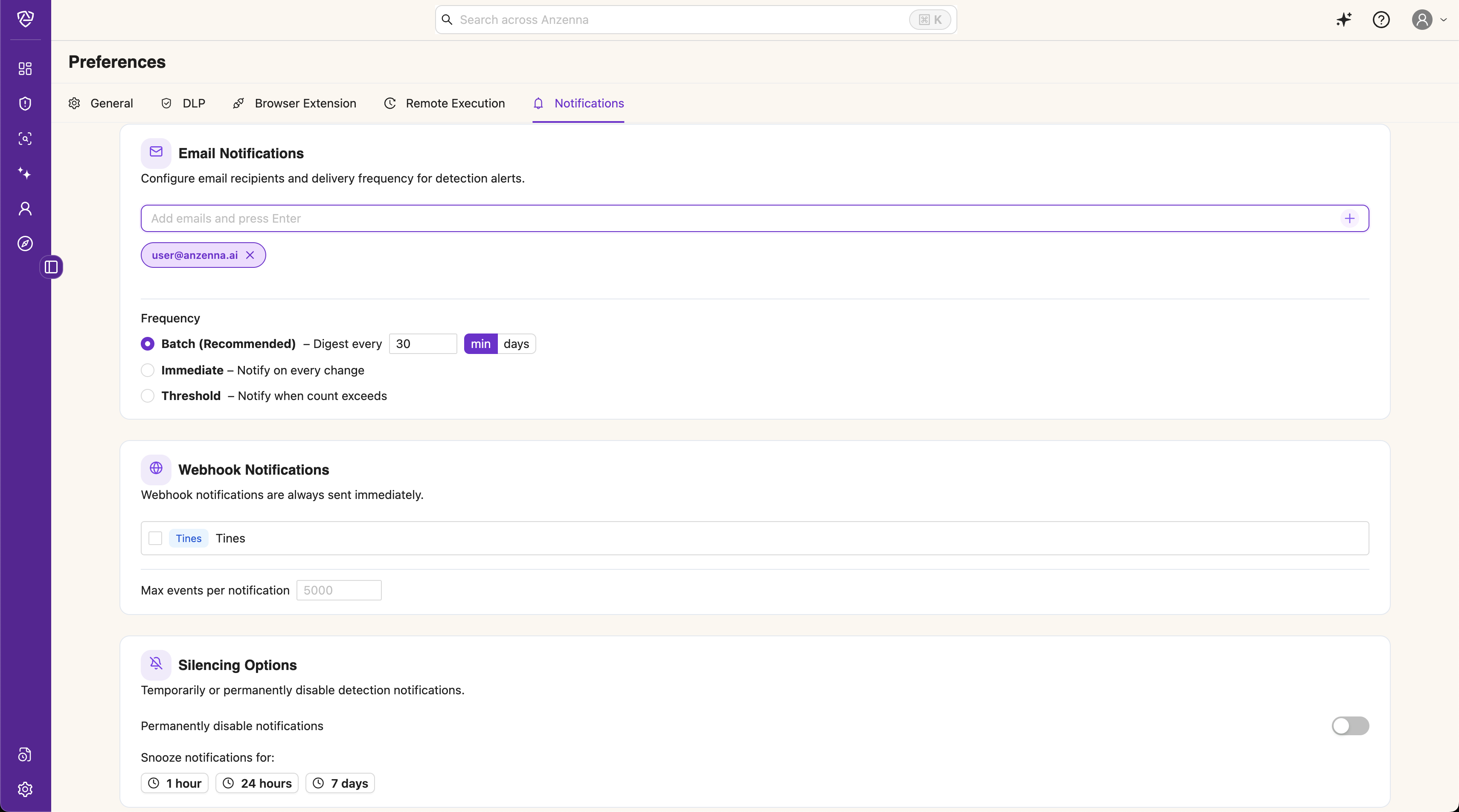
Global settings apply to all detections by default. Navigate to Settings > Notifications to configure them.
Email Notifications
Toggle Email to enable email notifications
Add recipient email addresses in the Recipients field
Choose a Frequency mode (see
Frequency Modes
below)
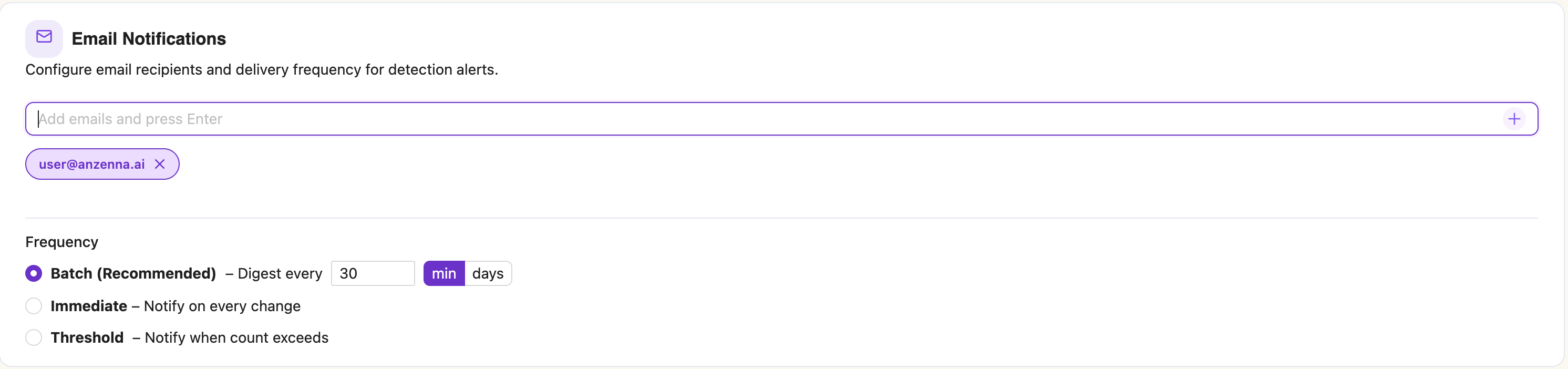
In Batch mode (the default), recipients receive a single digest email covering all detections with updates. In Immediate mode, a separate email is sent for each detection as soon as new events are found.
Webhook Notifications
Toggle Webhook to enable webhook notifications
Select which enrolled webhook providers should receive notifications
Optionally adjust Max events per notification (default: 5,000) to control payload size

Webhook providers are configured in Settings > Integrations. Add a Tines, N8N, or other webhook integration there first, then return here to enable it for notifications.
Webhooks always fire immediately per-detection, even when the frequency mode is set to Batch. The batch frequency only affects email delivery timing.
Silencing Options
Silencing lets you temporarily or permanently suppress notifications:
Permanently disable — stops all notifications until you manually re-enable them
Snooze — suppresses notifications for a set duration (1 hour, 24 hours, or 7 days)

Per-Detection Overrides
Each detection can override the global notification settings with its own configuration.
Navigate to the Detections page
Click on a detection to open the detail drawer
Open the Notifications tab
Toggle Use custom notification configuration
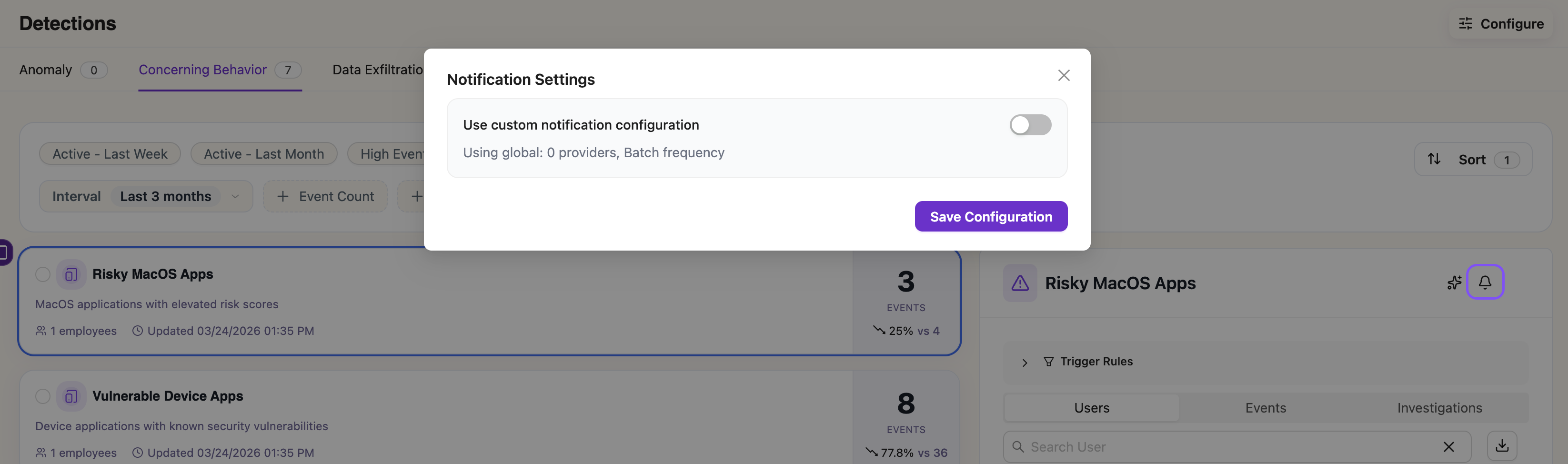
When the toggle is off, the detection inherits all global settings. Any changes to global config automatically apply.
When the toggle is on, the detection uses its own independent configuration. You can customize:
- Email enable/disable and recipient list
Webhook enable/disable and provider selection
- Frequency mode and batch window
- Max events per notification
Silencing options (permanent disable, snooze)
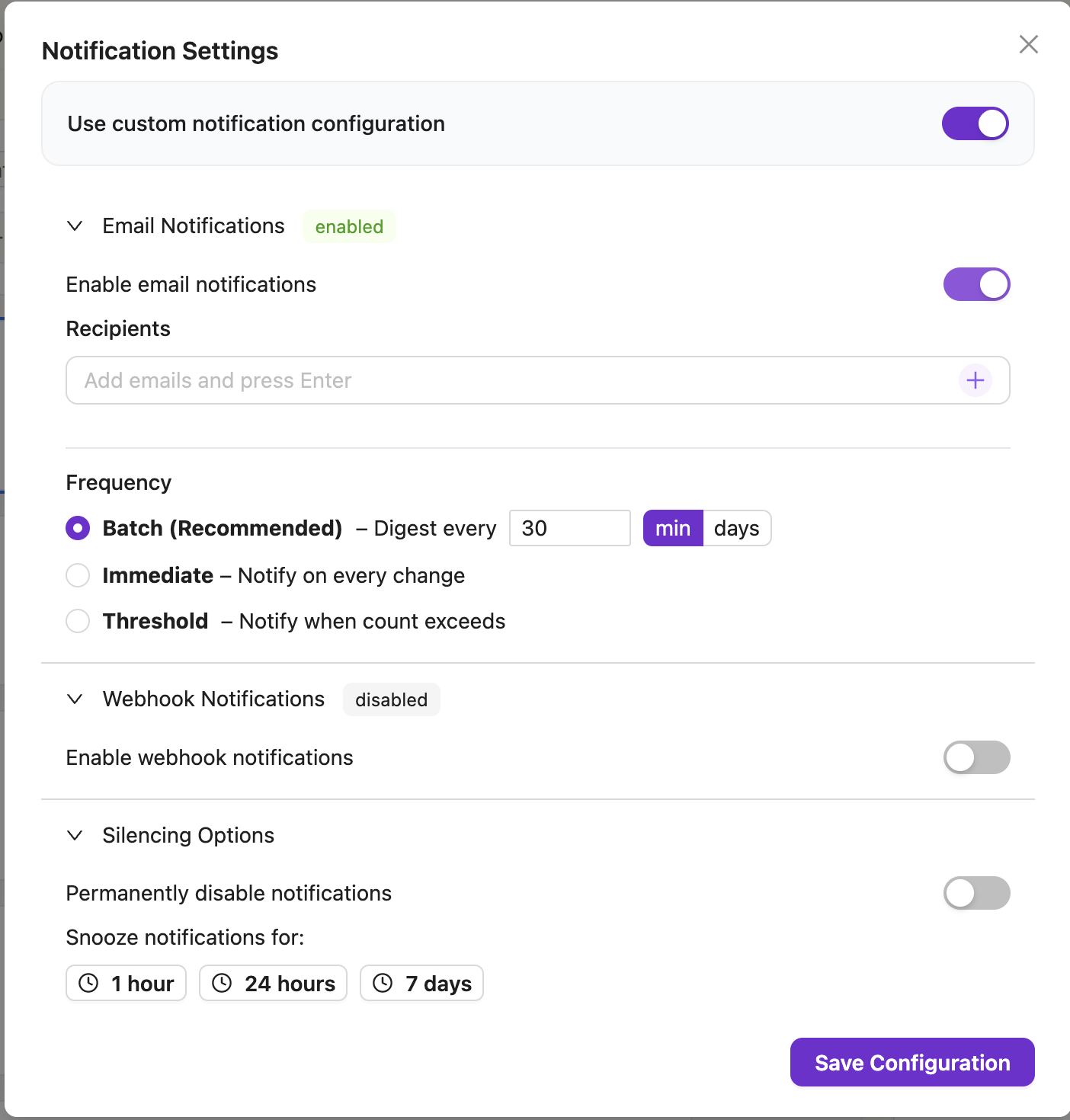
If you snooze a detection that's using global config, the system automatically switches it to custom configuration (copying your current global settings as a starting point). After the snooze expires, the detection stays on custom config — toggle Use custom notification configuration off manually to re-inherit global settings.
Frequency Modes
The frequency mode controls when notifications are sent. It can be set at the global level or overridden per-detection.
Batch (Recommended)
Email — A single digest email is sent periodically covering all detections with updates. The batch window is configurable (default: 60 minutes). Each detection in the digest shows its new event count, total count, and affected users.
Webhook — Fires immediately per-detection regardless of the batch window. Automation tools need real-time events for SOAR workflows, so webhooks are never batched.
The system automatically deduplicates — if a detection's count hasn't increased since the last notification, no notification is sent.
Immediate
Both email and webhook fire on every detection recalculation where the event count has increased. Use this when you need real-time email alerts for specific detections.
Threshold
Notifications fire only when the event count exceeds a configured value. Once the threshold is crossed and a notification fires, the count must increase again to trigger another notification. Use this for alerting only on significant accumulations.
Webhook Payload Reference
When a detection triggers, Anzenna sends a
POST request to your webhook URL with
the following JSON payload:
{
  "notification": {
    "id": "019cf975-c3fd-7714-85fe-fb8c8986d102",
    "title": "Public Google Workspace Shares: 3 new events",
    "body": "Users sharing documents publicly\n\n3 new events since last notification\n3 events attached\n2 affected users\nsince Mar 17, 2:30 PM",
    "action_url": "https://app.anzenna.ai/u/detections/98fd8ca7-9633-4e0f-8eca-ac3c56b4de97"
  },
  "delivery": {
    "id": "019cf975-c410-7abc-9a12-3456789abcde",
    "recipient_name": "Security Team",
    "channel": "webhook"
  },
  "metadata": {
    "detection_id": "98fd8ca7-9633-4e0f-8eca-ac3c56b4de97",
    "previous_count": 42,
    "current_count": 45,
    "since": 1710612345678,
    "event_count": 3,
    "user_count": 2,
    "affected_users": ["alice@example.com", "bob@example.com"],
    "events": [
      {
        "id": "019a787e-c083-711c-8f3d-4c0c7d61e0ec",
        "person_name": "Alice Smith",
        "description": "Shared document (quarterly-report.xlsx) publicly",
        "timestamp": 1710612300000
      }
    ]
  }
}
Field Reference
| Field | Description |
|---|---|
notification.id | Unique notification ID |
notification.title | Human-readable title: "{detection}: {N} new events" |
notification.body | Summary with event count, affected users, and time since last notification |
notification.action_url | Direct link to the detection in Anzenna |
metadata.detection_id | Detection ID (use in API calls) |
metadata.previous_count | Event count at the time of the last notification |
metadata.current_count | Current event count |
metadata.since | Unix timestamp (ms) of when the last notification was sent |
metadata.event_count | Number of new events since last notification |
metadata.user_count | Number of affected users |
metadata.affected_users | List of affected user email addresses |
metadata.events | Array of event summaries (limited by max events per notification setting) |
Event Summary Fields
| Field | Description |
|---|---|
events[].id | Event ID — use this to fetch full details via the API |
events[].person_name | Display name of the person involved |
events[].description | Human-readable event description |
events[].timestamp | Unix timestamp (ms) of when the event occurred |
Enriching Events via the API
The webhook payload includes event summaries. To get full event details (risk scores, asset names, source metadata), use the Anzenna API.
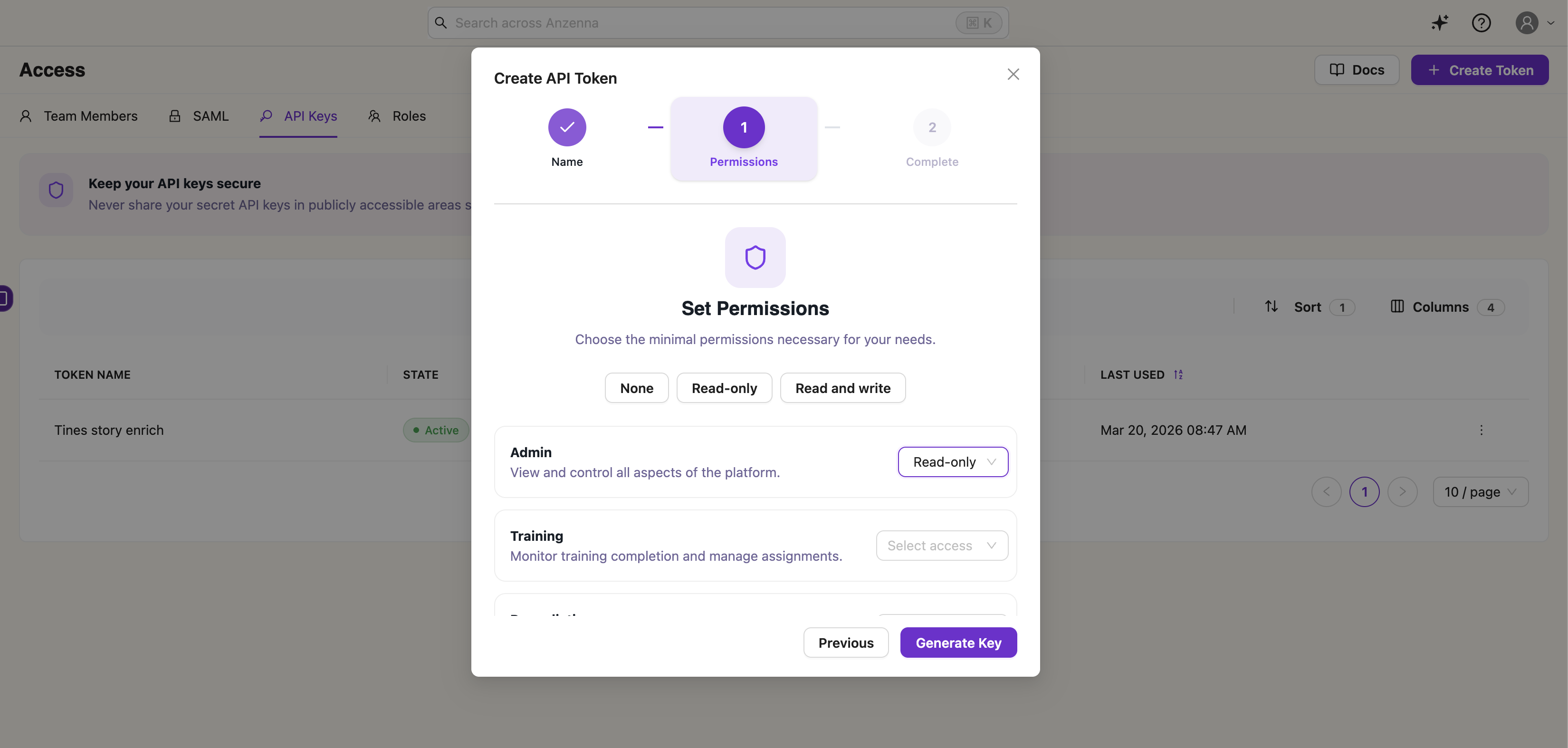
Create an API Key
Navigate to Settings > API Keys
Click Create API Key
Grant the Admin scope with Read-only access
Copy the key value — you won't be able to see it again
All API calls require the key in the
Authorization header:
Authorization: Bearer <your-api-key>
Get Full Event Details
Look up a specific event by its ID from the webhook payload:
curl -X POST https://api.anzenna.ai/api-key/v1/events \
  -H "Content-Type: application/json" \
  -H "Authorization: Bearer $API_KEY" \
  -d '{"query": "id = '\''019a787e-c083-711c-8f3d-4c0c7d61e0ec'\''"}'
Example response:
{
  "items": [
    {
      "id": "019a787e-c083-711c-8f3d-4c0c7d61e0ec",
      "issue_type": "direct_sharing_external",
      "employee_email": "alice@example.com",
      "employee_name": "Alice Smith",
      "asset_name": "quarterly-report.xlsx",
      "happened": "2026-03-17T17:48:17.794Z",
      "risk_score": 4.9,
      "source": "google_workspace",
      "high_prevalence": false
    }
  ],
  "pagination": {
    "count": 1
  }
}
Queryable Fields
Filter events using SQL-like syntax in the
query parameter. Combine conditions
with AND /
OR.
| Field | Type | Example |
|---|---|---|
id | string | id = '019a787e-...' |
employee_email | string | |
happened | timestamp | |
risk_score | number | risk_score > 4.0 |
source | string | source = 'google_workspace' |
allowlisted | boolean | allowlisted = false |
high_prevalence | boolean | high_prevalence = false |
Other Useful Endpoints
Get detection details:
curl -X GET https://api.anzenna.ai/api-key/v1/detections/{detection_id} \
  -H "Authorization: Bearer $API_KEY"
List all events for a detection:
curl -X POST https://api.anzenna.ai/api-key/v1/detections/{detection_id}/events \
  -H "Content-Type: application/json" \
  -H "Authorization: Bearer $API_KEY" \
  -d '{}'
List affected users:
curl -X GET https://api.anzenna.ai/api-key/v1/detections/{detection_id}/users \
  -H "Authorization: Bearer $API_KEY"
Automation: Tines Starter Story
A minimal Tines story is provided to get started quickly. It sets up a four-step pipeline that receives Anzenna webhooks and enriches each event via the API:
Webhook Action → Extract Alert Fields → Explode Event IDs → Get Event Details
Webhook Action — Receives the Anzenna notification payload
Extract Alert Fields — Parses
metadata.events[].idinto a list of event IDsExplode Event IDs — Splits the list so each event ID is processed individually
Get Event Details — Calls the Anzenna API to fetch full details for each event
Download the Tines starter story (JSON)
Setup Instructions
After importing the story into Tines, configure the following:
1. Create a Credential
Go to your Tines tenant > Credentials > New Credential:
- Name:
anzenna_api_key Type: Text
Value: Your Anzenna API key (see
Create an API Key
above)
2. Create a Resource
Go to your Tines tenant > Resources > New Resource:
- Name:
anzenna_api_base_url Type: Text
- Value:
https://api.anzenna.ai
3. Connect the Webhook to Anzenna
Copy the webhook URL from the Webhook Action in Tines
In Anzenna, go to Settings > Integrations and add a Tines integration with the webhook URL
Go to Settings > Notifications and enable the Tines integration under Webhook Notifications
Ideas for Extending the Story
Route by severity — Branch on
risk_scoreto handle high, medium, and low risk events differentlyCreate tickets — Post to Jira or ServiceNow with detection context
Notify your team — Send to Slack or Teams with the
action_urlfor quick investigationAuto-remediate — Trigger response actions for high-confidence detections
The same webhook payload format works with N8N. Set up a Webhook trigger node, then follow the same pattern: extract event IDs, loop over them, and call the Anzenna API to enrich each event.
Need help? Contact
Anzenna Support
for assistance.