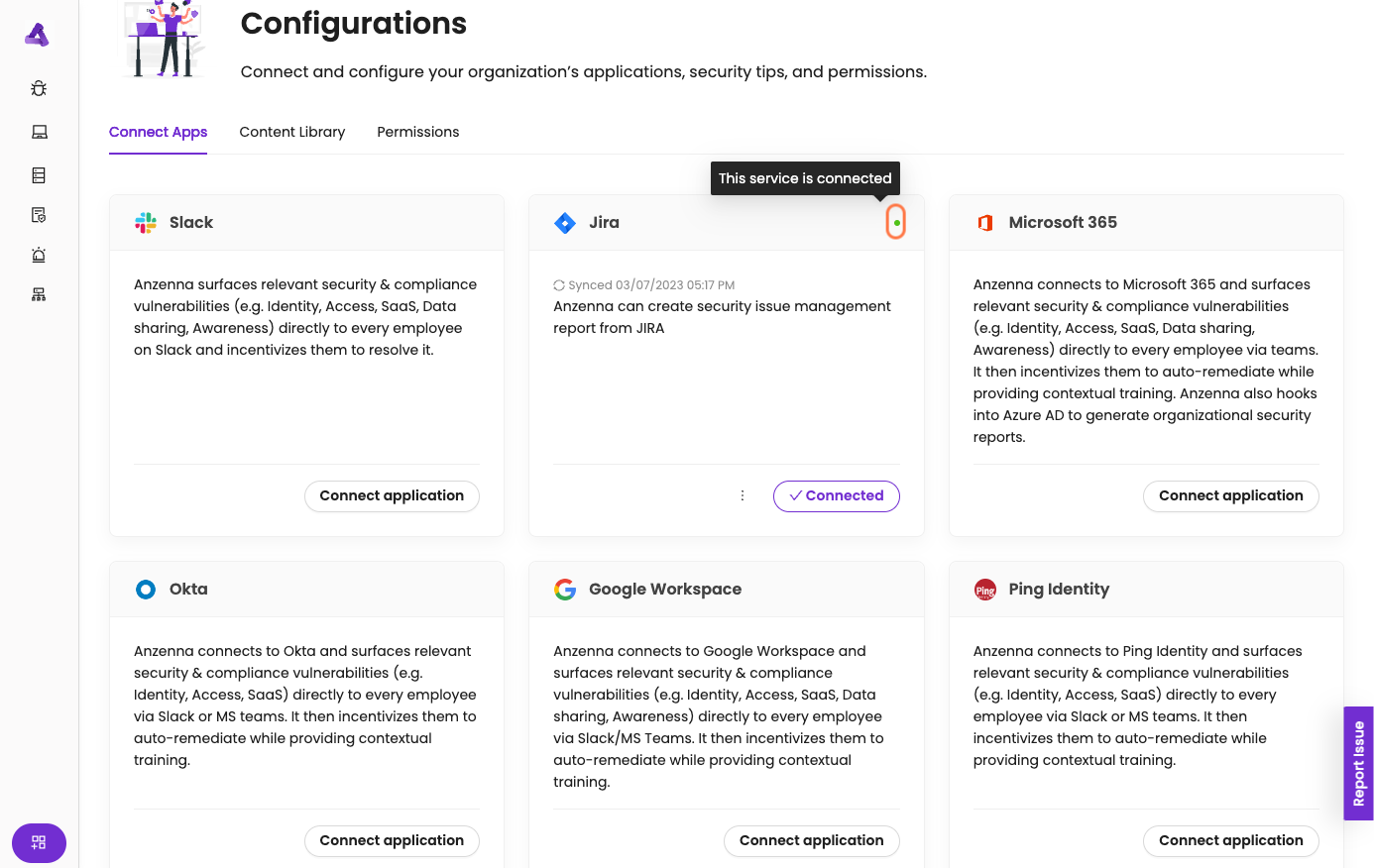
Connect JIRA to Anzenna

Integrate Anzenna with Atlassian JIRA to monitor issue creation, project access, and potential data exposure through issue tracking.

Prerequisites

  • JIRA administrator or site admin access
  • Anzenna account with Google authentication
  • Atlassian account

Overview

The integration provides:

  • Issue creation and modification tracking
  • Project access monitoring
  • Attachment and file sharing visibility
  • External sharing detection
  • Priority and label-based filtering

Step-by-Step Instructions

Part 1: Initial Authentication

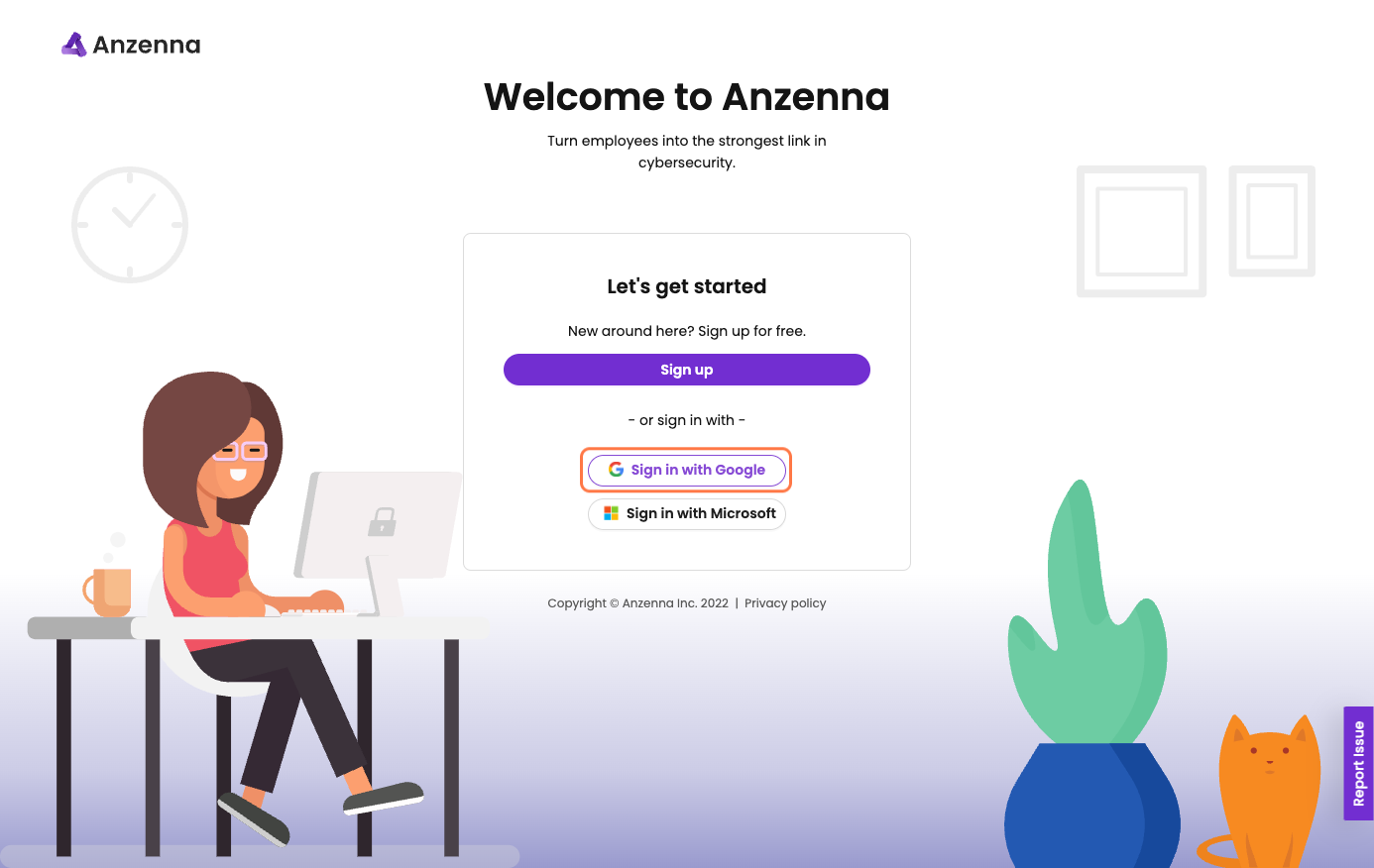
  1. Navigate to

    app.anzenna.ai

  2. Click Sign in with Google

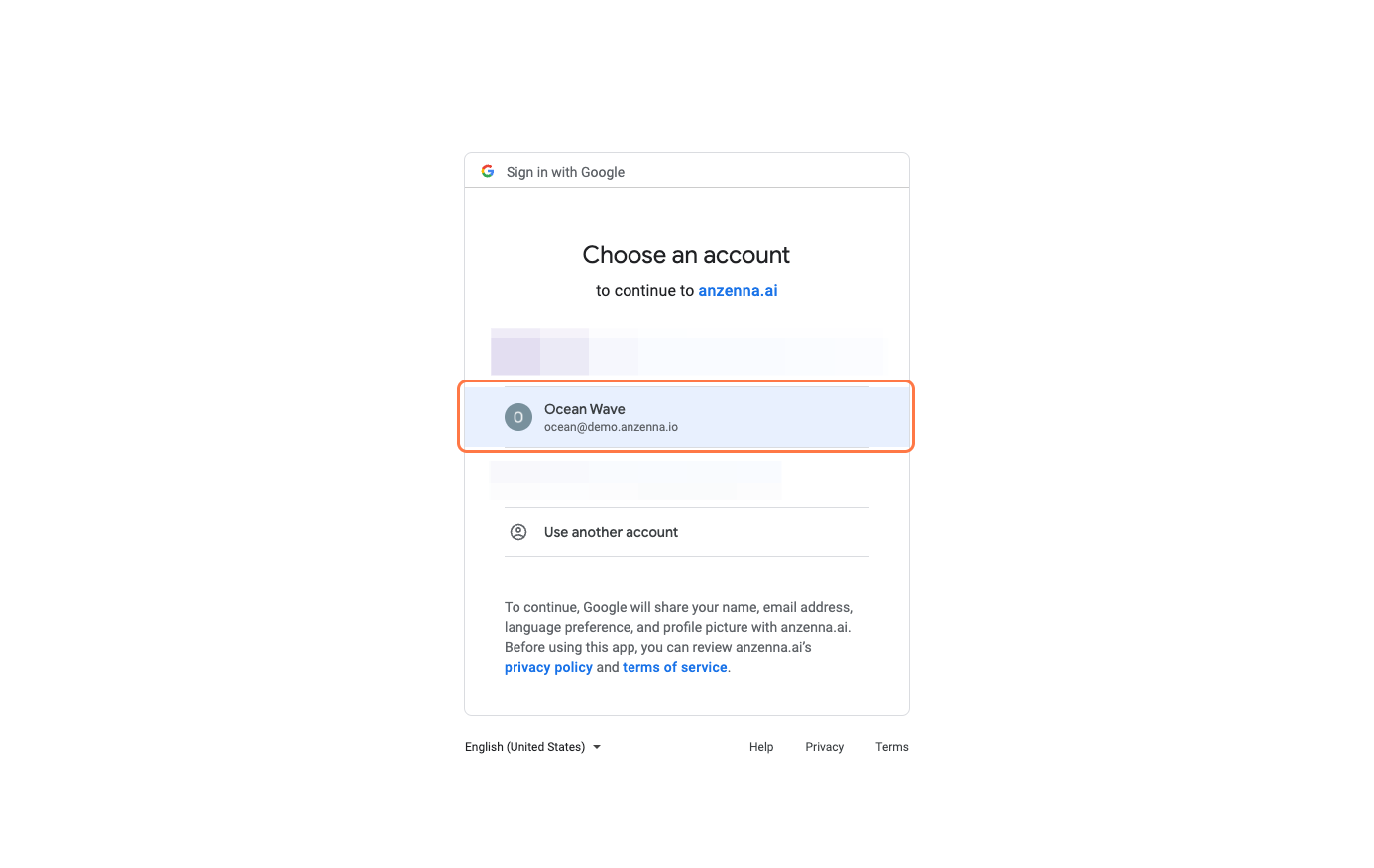
  3. Select your corporate Google account
  4. Return to app.anzenna.ai after authentication

Part 2: Connect to JIRA

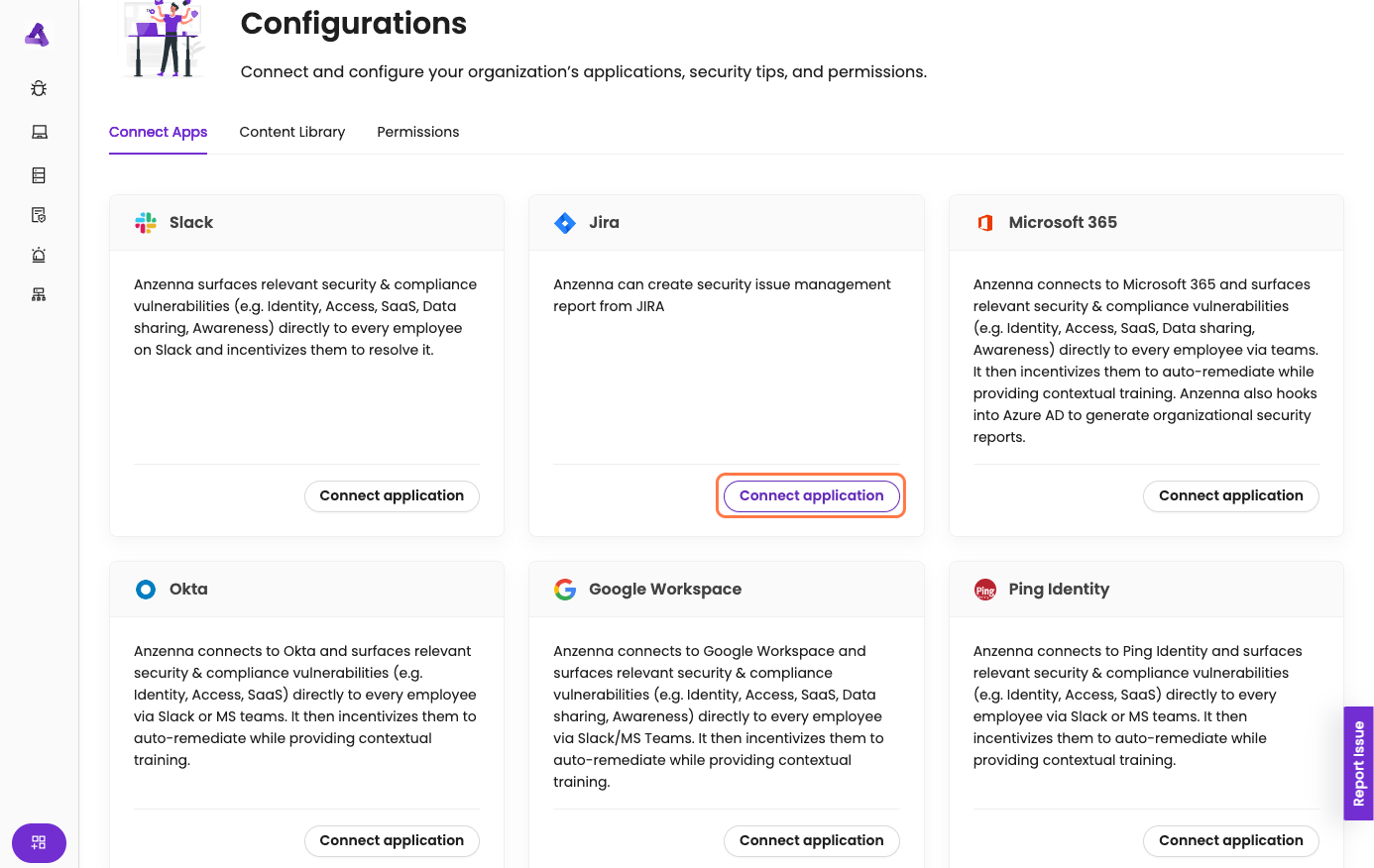
  1. Navigate to Settings > Integrations

  2. Find the JIRA integration card
  3. Click Connect application

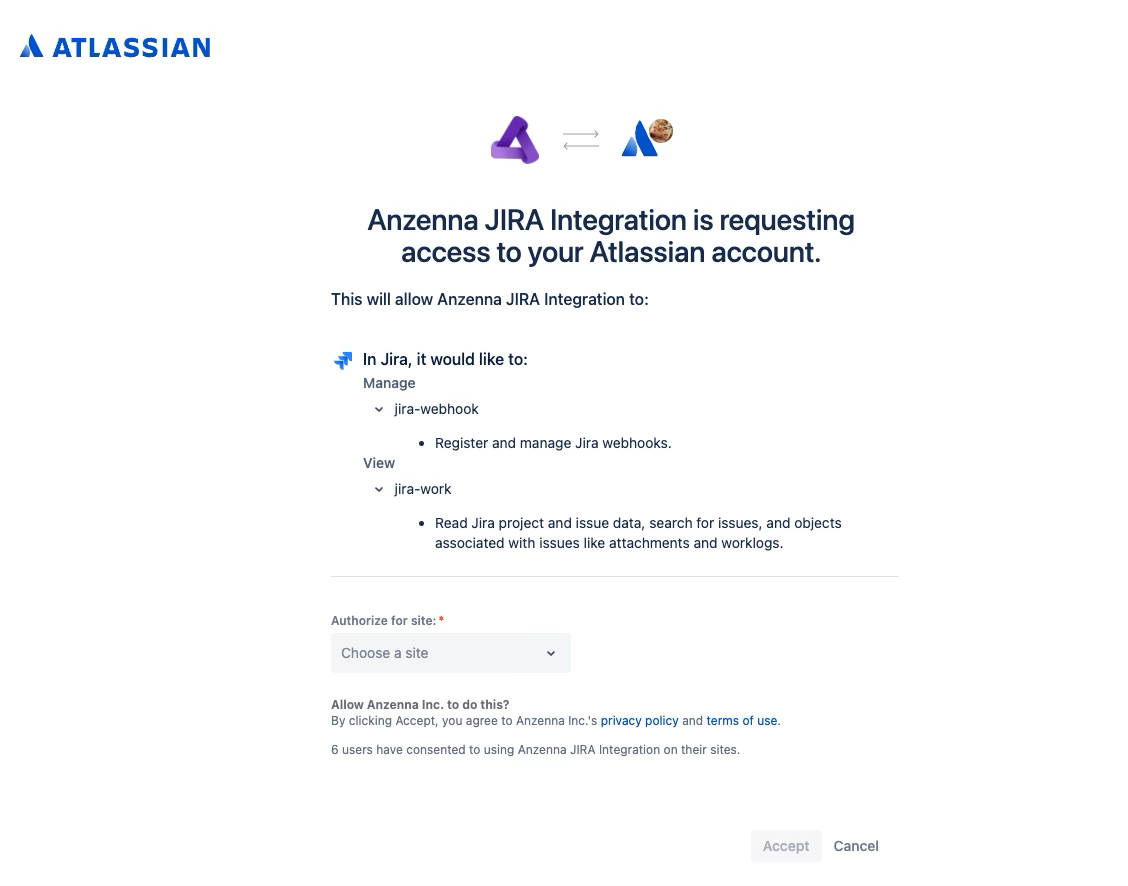
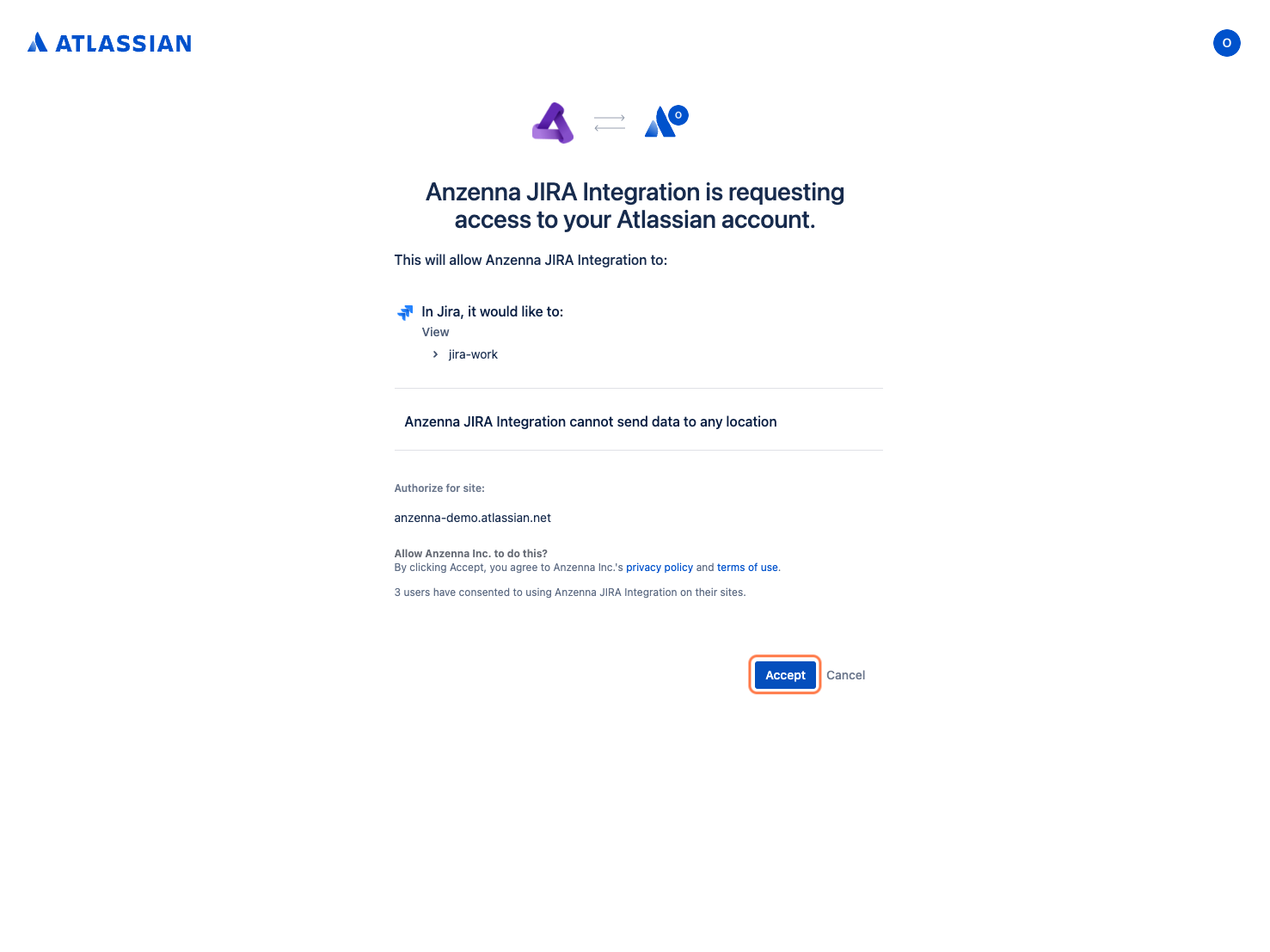
Part 3: Authorize Atlassian Access

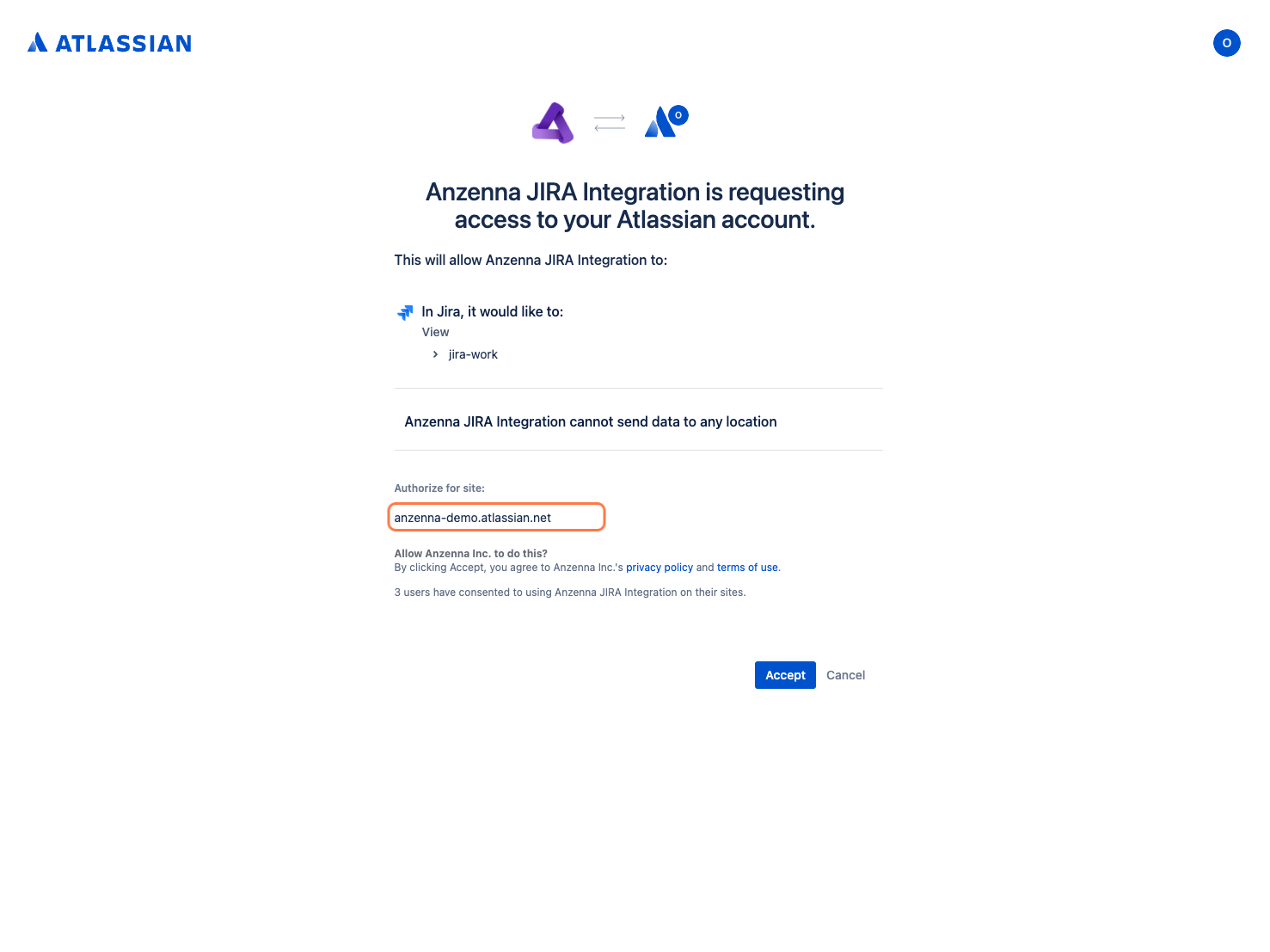
  1. If you have multiple JIRA sites, select the site you want to connect

Multiple Sites

You can connect multiple JIRA sites by repeating this process for each site.

  1. Review the requested permissions
  2. (Optional) Click to expand and review detailed permissions

    The integration requires:

    • Read access to issues
    • Read access to projects
    • Read user information
    • Read attachments
  3. Click Accept to authorize Anzenna's access to your JIRA instance

Part 4: Return to Anzenna

  1. You'll be redirected back to app.anzenna.ai

  2. A confirmation dialog will appear

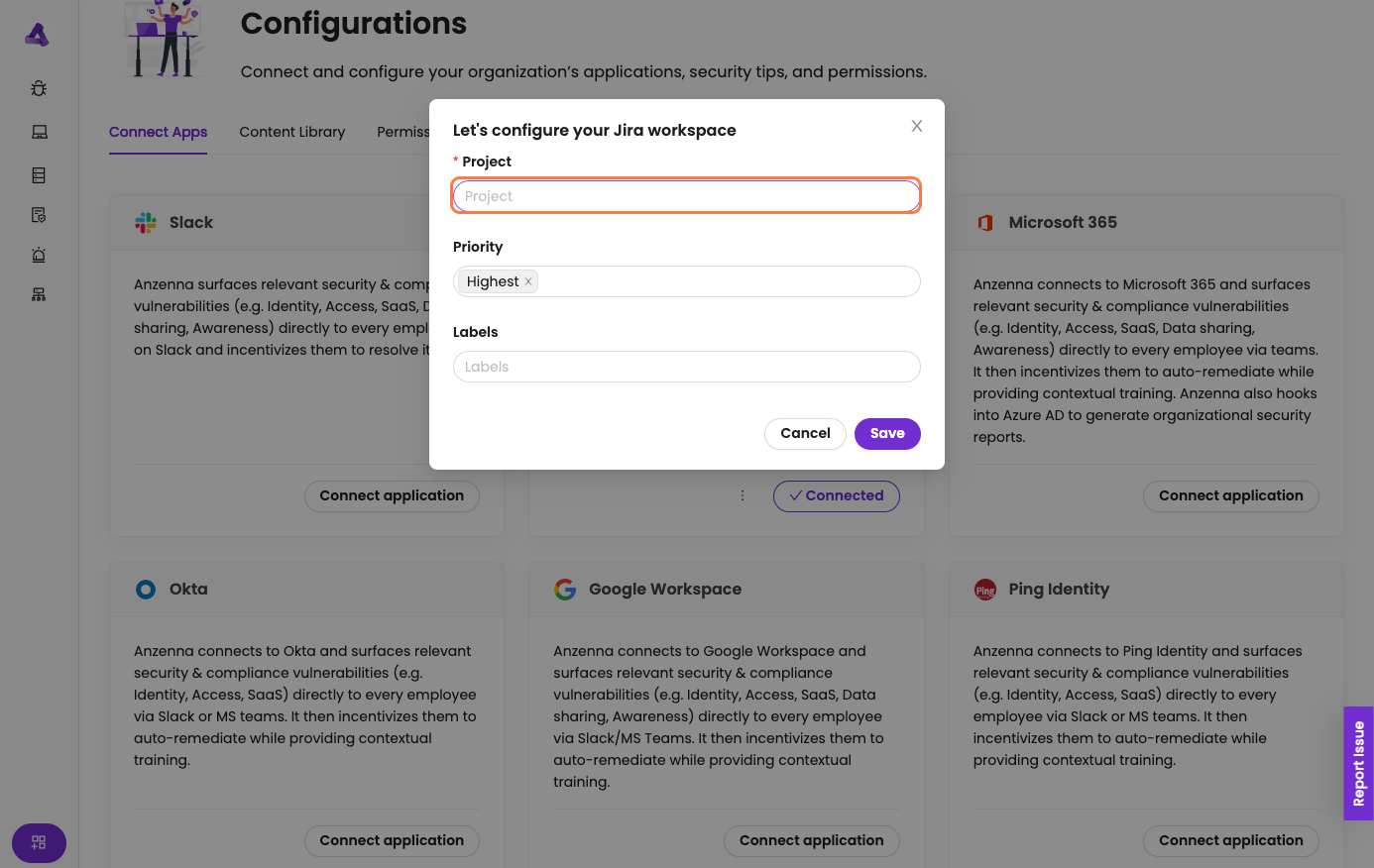
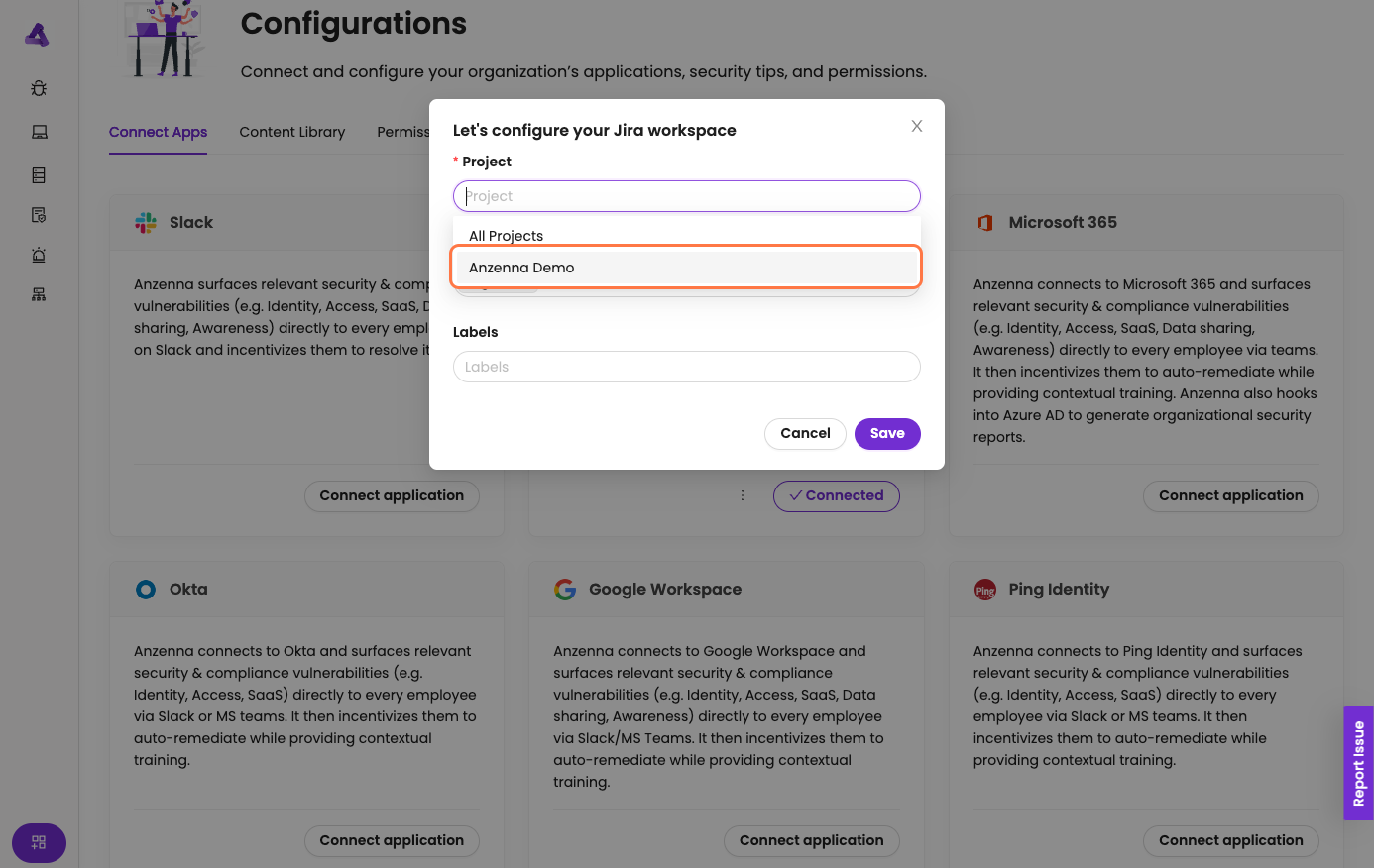
Part 5: Configure Integration Filters

  1. Select projects to monitor

    Options:

    • All projects
    • Specific projects only
    • Project categories
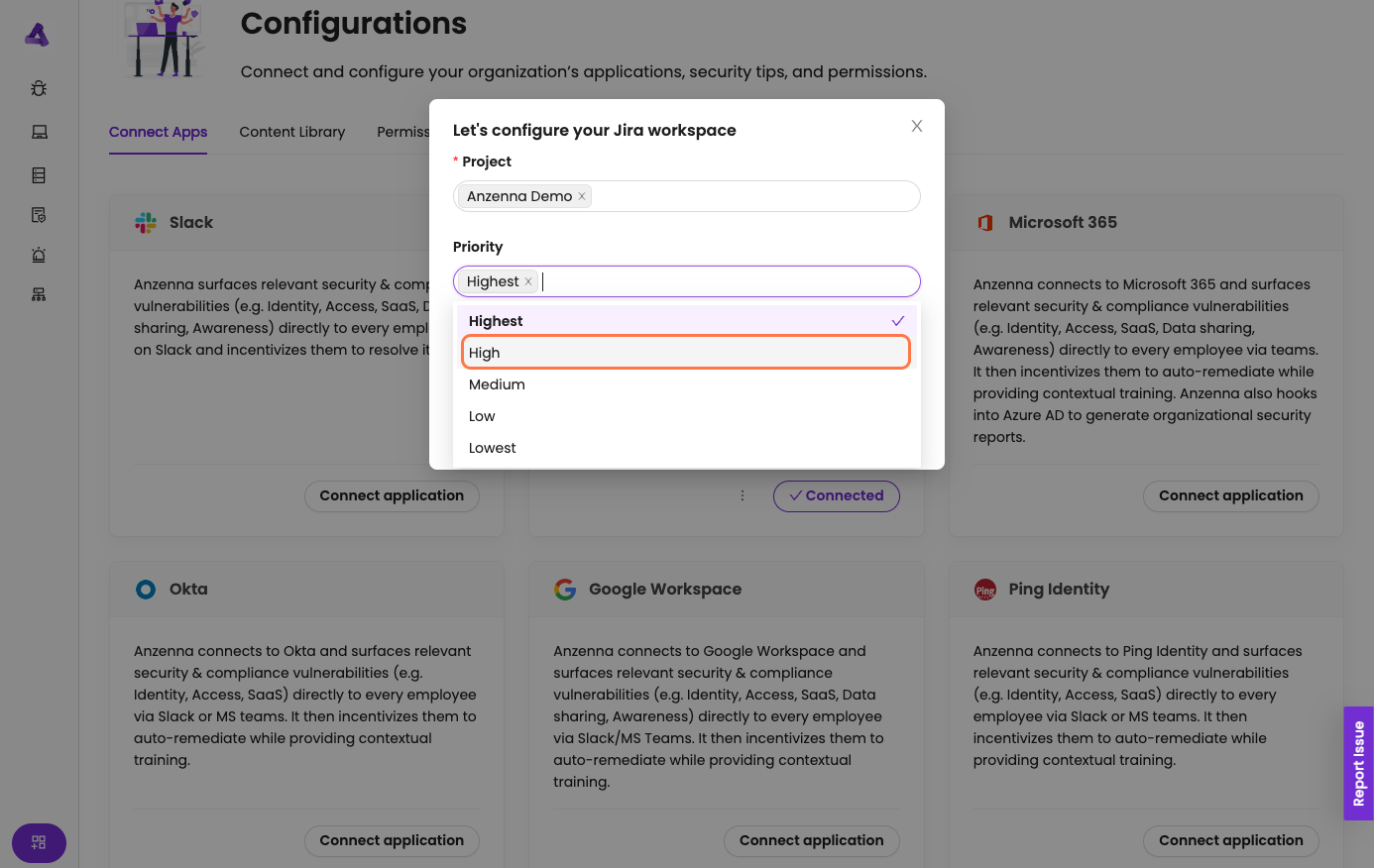
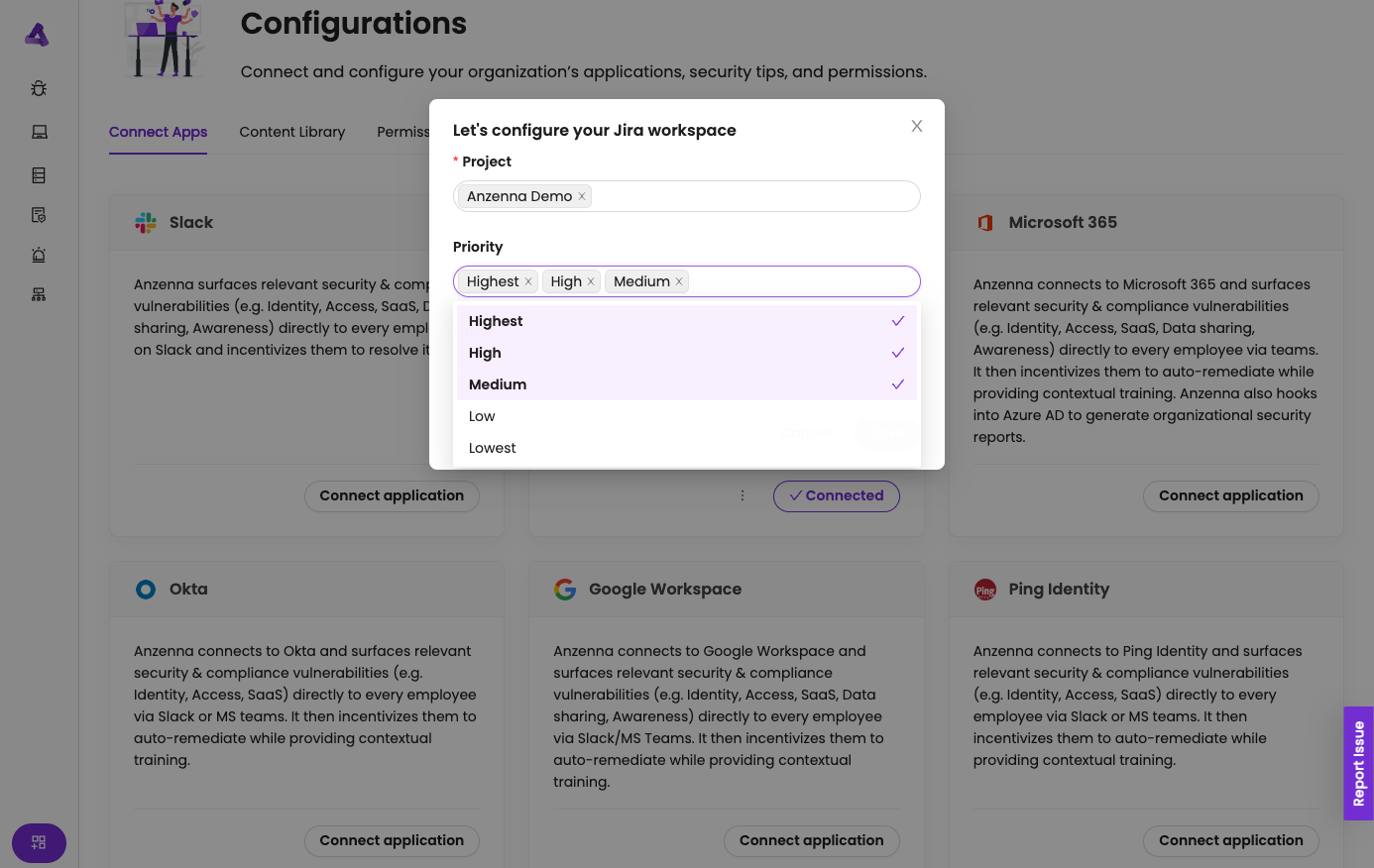
  2. Filter by priorities

    Select which priority levels to track:

    • Highest
    • High
    • Medium
    • Low
    • Lowest
    Priority Filtering

    Focus on High and Highest priorities to reduce noise and monitor critical issues.

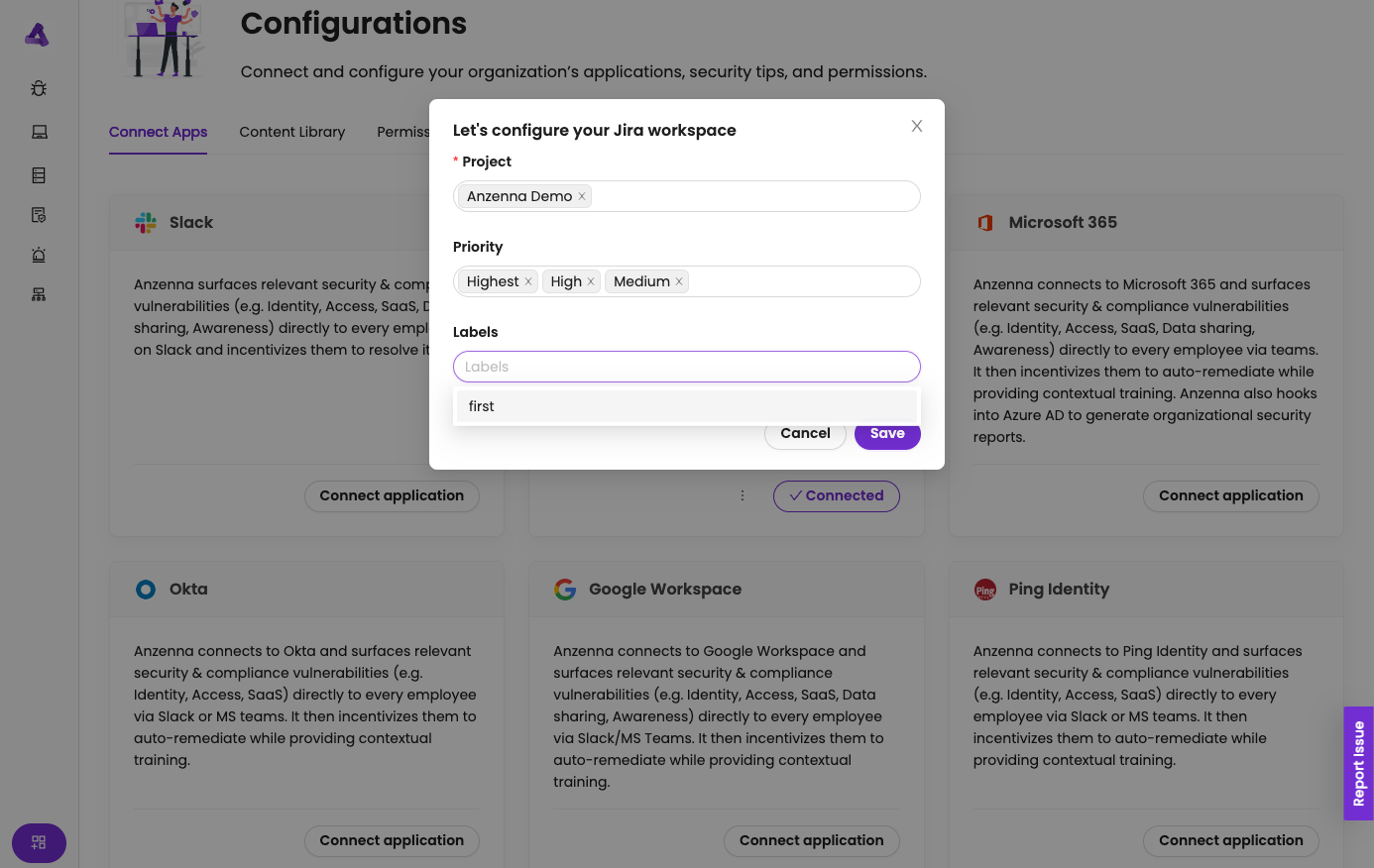
  3. (Optional) Choose labels to filter by

    • Enter specific labels to monitor
    • Leave blank to monitor all issues
    • Use labels for team/department filtering
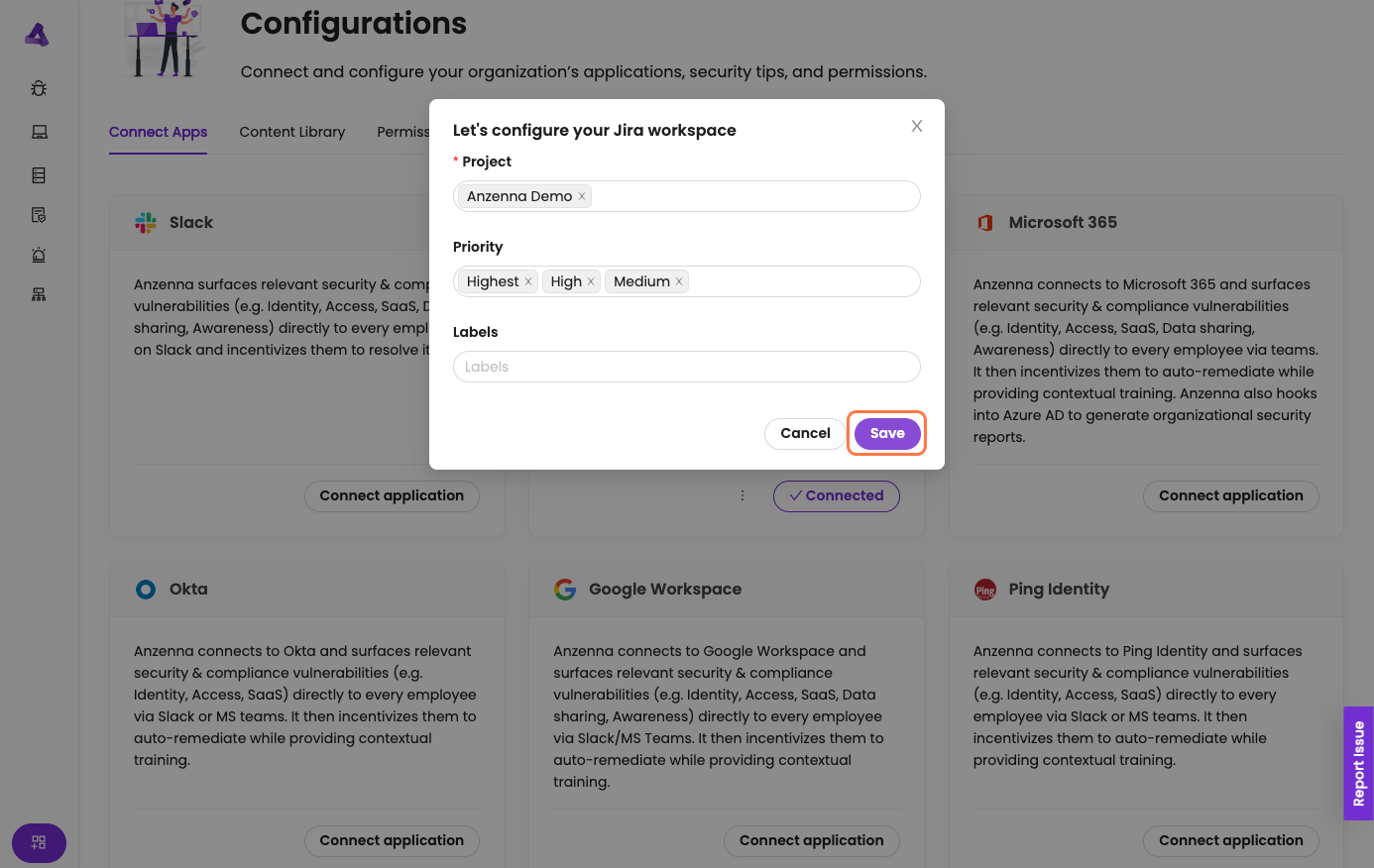
  4. Click Save to finalize configuration
  5. Wait briefly for the service connection to establish

Verification

  1. Verify integration shows Connected in Anzenna

  2. Wait 15-30 minutes for initial sync
  3. Navigate to Anzenna's JIRA or Projects dashboard

  4. Verify issues from selected projects are appearing

  5. Check that filtering by priority and labels is working

What Data is Collected

Issue Data

  • Issue keys and IDs
  • Issue summaries
  • Descriptions
  • Status and workflow state
  • Priority levels
  • Assignment information

Activity Tracking

  • Issue creation events
  • Modification history
  • Comment activity
  • Status transitions
  • Assignment changes

Attachment Monitoring

  • Files attached to issues
  • Attachment metadata
  • Download activity
  • External sharing indicators

Project Information

  • Project names and keys
  • Project leads
  • Access permissions
  • Project categories

User Activity

  • Issue creators
  • Assignees
  • Commenters
  • File uploaders

Use Cases

Data Loss Prevention

  • Monitor sensitive data in issue descriptions

  • Track file attachments
  • Detect external sharing via public issues
  • Identify credential exposure in comments

Insider Threat Detection

  • Unusual issue creation patterns
  • Mass data export via issue exports
  • Off-hours activity
  • Access to sensitive projects

Compliance Monitoring

  • Track issue handling for audit trails
  • Monitor data retention compliance
  • Access control verification
  • Document handling procedures

Troubleshooting

Connection Fails

  • Verify you have admin access to JIRA site
  • Check that Atlassian account is active
  • Ensure organization allows third-party apps

  • Review Atlassian admin settings

No Issues Appearing

  • Wait 30 minutes for initial sync
  • Verify project selection includes active projects

  • Check that priority filter isn't too restrictive

  • Ensure issues exist matching your filters
  • Review label filters aren't excluding everything

Multiple Sites

  • Each JIRA site requires separate connection

  • Repeat authorization process for each site
  • Track which sites are connected
  • Configure filters independently per site

Permission Errors

  • Verify admin role in JIRA
  • Check Atlassian organization settings
  • Ensure app isn't blocked by policy
  • Review site access permissions

Security Considerations

  • OAuth 2.0 - Secure Atlassian authentication

  • Read-only access - Cannot modify issues

  • Project-based filtering - Limit scope to necessary projects

  • Audit logging - All access logged in Atlassian

  • Revocable - Can be disconnected anytime

Best Practices

  1. Select specific projects - Don't monitor all if not needed

  2. Use priority filtering - Focus on high-priority issues

  3. Label-based organization - Use labels for team filtering

  4. Regular reviews - Audit monitored projects quarterly

  5. User communication - Inform teams about monitoring

  6. Compliance alignment - Ensure meets data policies

  7. Test filters - Verify correct issues are captured

Integration Maintenance

Regular Checks

Perform monthly:

  • Verify connection active
  • Review project list
  • Check filter effectiveness
  • Test sample queries

Filter Updates

To modify project or priority filters:

  1. Go to Anzenna > Integrations > JIRA
  2. Click configuration/settings
  3. Update project, priority, or label selections

  4. Save changes
  5. Filters apply immediately

Adding More Sites

  1. Repeat authorization process
  2. Select different site during connection
  3. Configure filters for new site
  4. Each site monitored independently

Disconnecting

  1. Disable in Anzenna integrations
  2. Revoke access in Atlassian account settings

  3. Historical data retained per policy

Atlassian Permissions

The integration requests:

  • read:jira-work - Read issues, projects, and workflows

  • read:jira-user - Read user information

  • read:attachment:jira - Read attachments metadata

  • offline_access - Maintain long-term connection

All permissions are read-only. Anzenna cannot create or modify issues.


Need help? Contact

Anzenna Support

for assistance.